

AWS Config - Automating Compliance and Security Monitoring
Organizations leveraging cloud infrastructure require stringent measures to ensure their operations are secure.

1. Why We Need This Usecase
Organizations leveraging cloud infrastructure require stringent measures to ensure their operations are secure, compliant, and well-configured. AWS Config provides a necessary solution by offering real-time monitoring and assessment of AWS resources, which helps in maintaining regulatory compliance, managing security risks, and enforcing company-wide governance standards effectively.
2. When We Need This Usecase
This use case is essential when:
Setting up new cloud environments and ensuring they comply with security best practices from the start.
Monitoring ongoing operations to ensure continuous compliance with external regulations and internal policies.
Conducting periodic audits and security assessments to prevent configuration drifts and unauthorized changes.
3. Prerequisites for the Lab
An active AWS account with administrative permissions.
Basic understanding of AWS services, particularly AWS EC2, Security Groups, and IAM.
Familiarity with navigating the AWS Management Console.
4. Advantages and Disadvantages of This Use Case
Advantages:
Proactive Compliance Management: Continuously monitors and records AWS resource configurations to quickly identify non-compliance issues.
Security Enhancement: Helps detect potential security threats by monitoring changes and configurations that do not adhere to the defined security guidelines.
Audit Readiness: Automatically records and maintains a history of configuration changes that can be vital for compliance audits and reviews.
Disadvantages:
Complex Setup for Large Scale Systems: Configuring AWS Config across multiple accounts and services can become complex and resource-intensive.
Cost Implications: Depending on the scale, the cost associated with logging and data storage can be significant.
Potential for Over-alerting: Improper configuration can lead to numerous unnecessary alerts, which might lead to alert fatigue.
5. Step-by-Step Implementation Instructions
Introduction
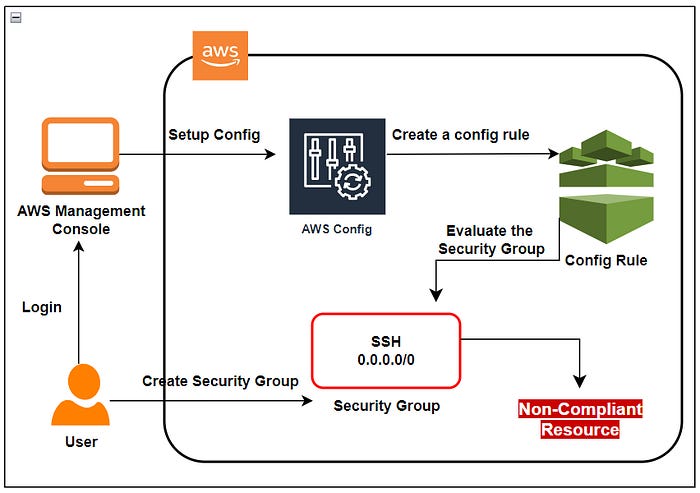
In today’s digital landscape, where organizations increasingly rely on cloud infrastructure for their operations, ensuring the security, compliance, and proper configuration of resources is paramount. Amazon Web Services (AWS) offers a comprehensive suite of tools and services to help organizations achieve these goals, with AWS Config standing out as a critical component for continuous compliance and security monitoring.
AWS Config provides a robust framework for monitoring and assessing the configuration of AWS resources in real-time. It tracks changes to resource configurations, captures configuration snapshots, and enables organizations to enforce compliance rules and security best practices. By leveraging AWS Config, organizations can gain deep insights into their AWS environments, maintain compliance with industry standards and regulations, and mitigate security risks effectively.
Project Implementation
Part 1:Enable AWS Config with a single click option
Access the Config service by clicking on the Services menu under the Management & Governance section.
On the AWS Config Home page, select the 1-click setup option to initiate configuration.
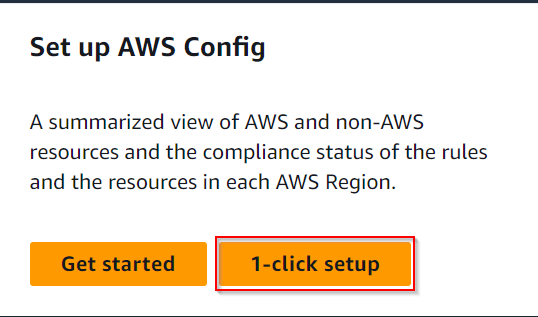
Review the setup details carefully and confirm by clicking the “Confirm” button to proceed.
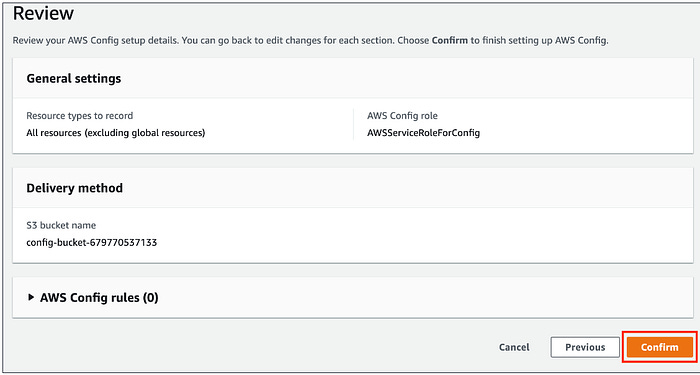
Once the setup is finalized, AWS Config will automatically discover all resources within the account.
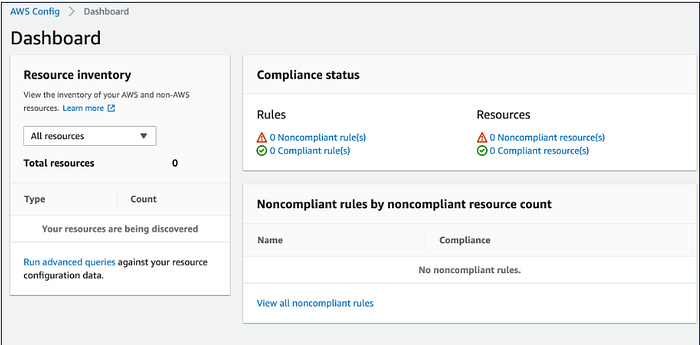
Part 2: Create a Config Rule
Start by accessing the “Rules” section under AWS Config from the left side panel.
Click on the “Add rule” button to begin defining a new rule.
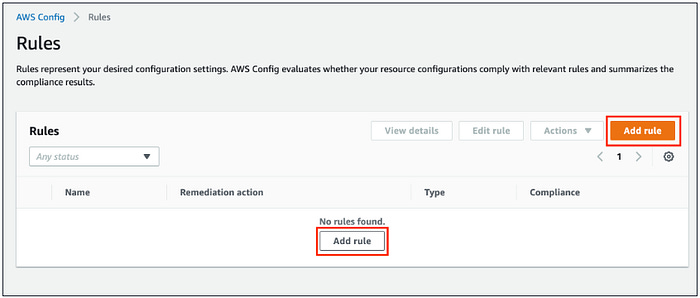
Specify the rule type by selecting from the list of AWS Managed rules.
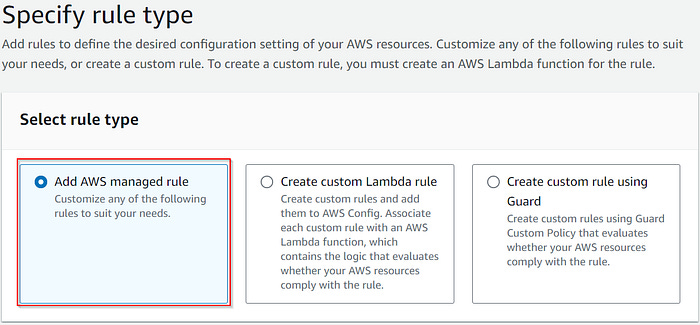
Choose “Add AWS managed rule” and search for the desired rule type, such as “restricted-ssh”.
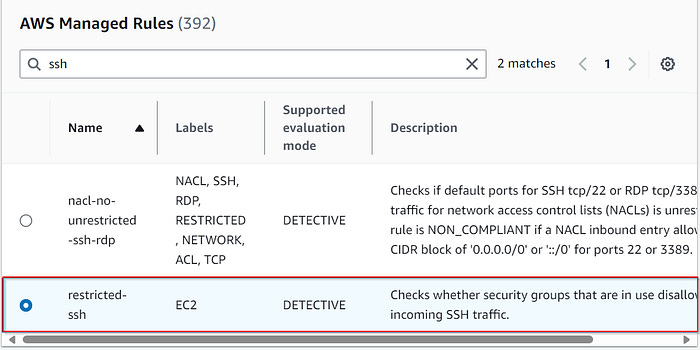
Maintain default configurations, then review and create the rule and click the “Save” button.
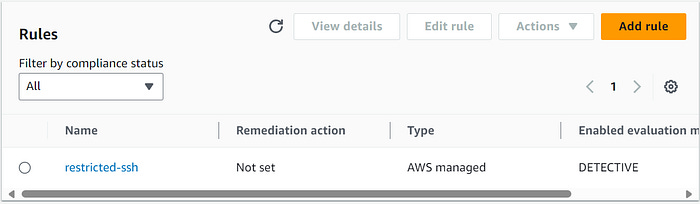
Wait for approximately 2–3 minutes for the newly created config rule named “restricted-ssh” to assess the compliance status of security groups.
If the Compliance status is not yet visible, refresh the page using Ctrl + R.
To further test compliance status, create two sample security groups with SSH inbound ports and check whether AWS Config marks them as non-compliant.
Part 3: Create the First Security Group
Access EC2 from the Services menu under the Compute section.
Select “Security Groups” from the left panel menu under the Network & Security section.
Click on the “Create security group” button and define the security group name, description, and select the Default VPC.
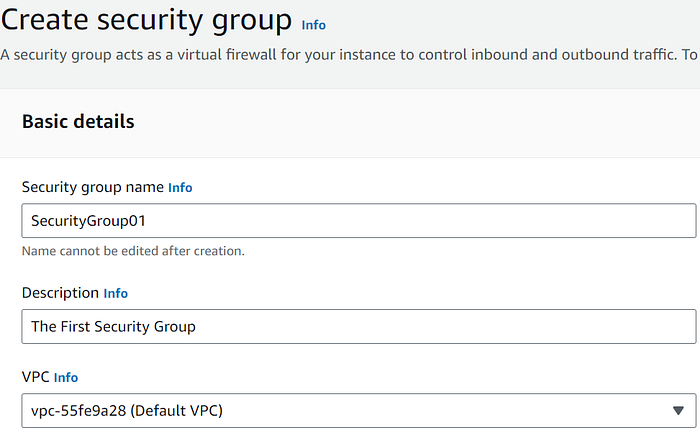
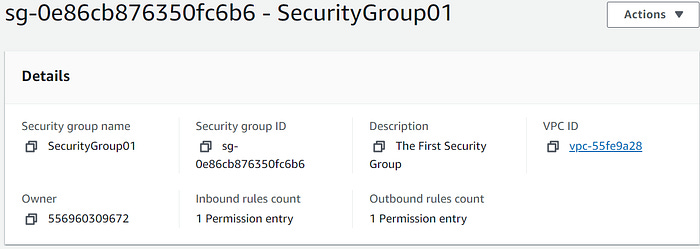
Add a rule for SSH inbound access with “Anywhere IPv4” as the source.
Click on “Create security group” to finalize.
Part 4: Create the second Security Group
On the left panel menu, select the Security groups under the Network & Security section.
Click on the Create security group button.
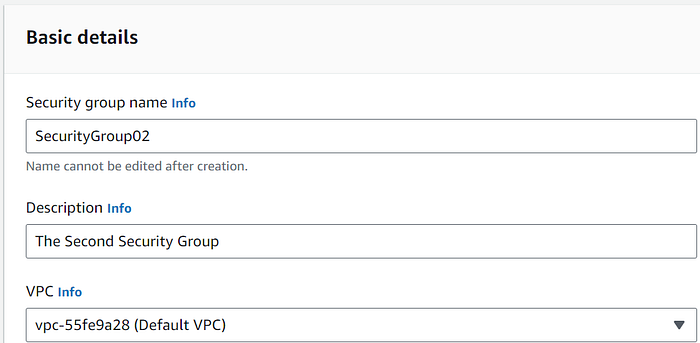
Security group name: SecurityGroup02
Description: Enter Second Security group
VPC: Select Default VPC
Click on the Add rule button under Inbound rules.
Type : Select SSH
Source : Select Anywhere IPv4
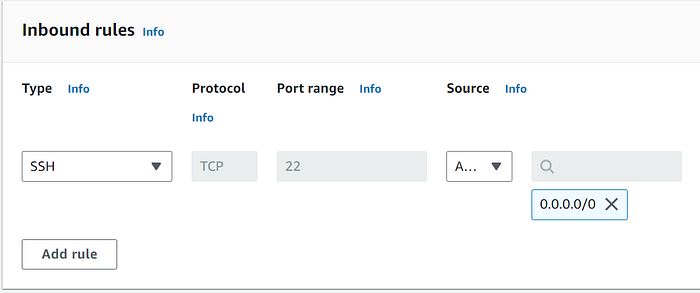
Click on “Create security group” to finalize.
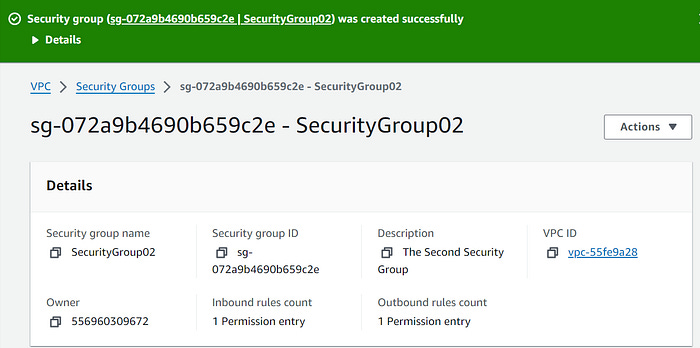
Part 5: Test Compliance Status
Navigate back to AWS Config under the Management & Governance section.
Refresh the status by selecting the rule, clicking on “Actions”, and choosing the “Re-evaluate” option.
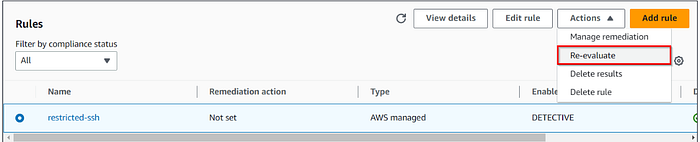
It may take up to 5 minutes for the compliance status to refresh.
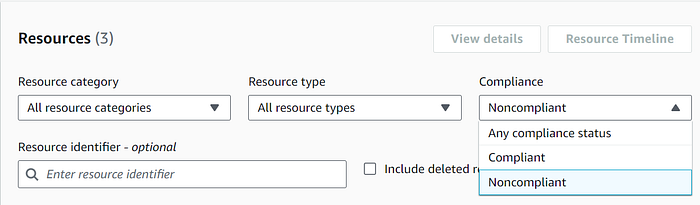
Once refreshed, it should display the non-compliant status of the created security groups.
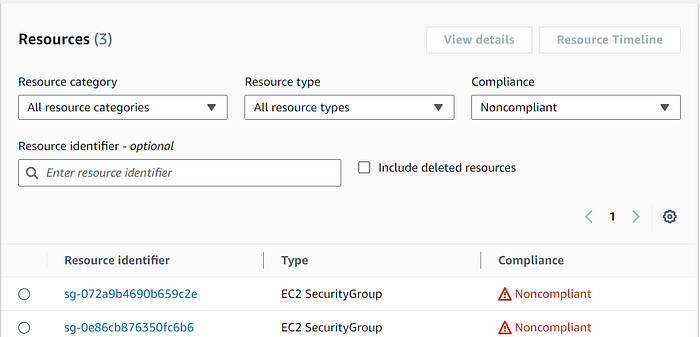
If desired, you have the option to delete all inbound rules and then reassess the compliance status.
6. Conclusion
This project illustrates how AWS Config can be effectively implemented to automate compliance and security monitoring within AWS cloud environments. By configuring AWS Config to monitor specific rules and changes, organizations can ensure their cloud infrastructures adhere to stringent security and compliance standards, thereby reducing risks and enhancing overall security posture.